
UX

UX: The Problems with Language Selection

Over the past few years, I have been working in back-ends and cloud infrastructure/architecture and have not worked much with front-ends at all, let alone the user experience. It has also been a long time since I worked on anything that needed any translation.

Recently the subject of translation had been mentioned for websites and I wondered if anything had changed since I last worked with multilingual websites with regard to the user experience.

It appears that designing multilingual websites is still a challenge even in 2020, there are still websites tying regions and languages together, flags to pick languages and language direction not always being applied.

We have to think about the whole user experience, what language is shown as the default? does the language require the layout to be right to left or left to right? If so what other controls need to be changed? what font size is required for each language so it displays correctly? Are images, icons, colours culturally appropriate? Will they offend?

There a lots of things to consider around user experience, but for this article I am just concentrating on language selection but the other things are equally important and need to be considered.

Language Selection

We live in a world where people live and work in multiple countries, some move to other countries and we go on holidays in other countries. This means we can no longer say everyone viewing my website in a given region speaks and reads the main language used.

Imagine a tourist website in England that only supported the English language, we would be expecting all the visitors coming for a holiday and finding places to go to also be fluent in the language. Now I think we can all agree that picking up a new language just to go away for a few weeks is a bit much, not that we wouldn’t try to speak some, but reading an entire website in a new language involves knowing a lot more.

So let’s looks at the issues for language selection:

Associating a Region and Language Together

There are many reasons why you might have your website in different regions, for example you might want or need to have different products or services available, or simply to make a region specific version of your website. For each region you add you may need to support additional languages.

Nike is a great example of a website that sells products depending on the region you are in. Not all items are available in all regions and shipping is only available for the selected region.

Scenario: You are working in France for 6 months, you’ve moved there temporarily for work and your grasp of French is not great and you need to buy some footwear. So you navigate to Nike’s shop and picked the region you are in.

Now the website is loaded, the language selected is French (Français), but there is no way to select another language which is not very helpful for this scenario.

Nike support a lot of languages and regions, separating the region and language selection would surely be a benefit and resolve this type of scenario. So for this scenario, if you were English, the language is supported in other regions just not the one you are in.

Where there are multiple official languages for a region, Switzerland for example have four languages, German (Deutsch) currently making up the largest share of around 63%, French (Français) around 23%, Italian (Italiano) around 8% and Romansh around 0.5%. Nike’s solution to this is separate entries for each supported variation, this would become difficult to navigate if more language choices were added per region in the same way.

Nike Region Selection Europe

Whilst I have used Nike as an example there are other companies doing similar.
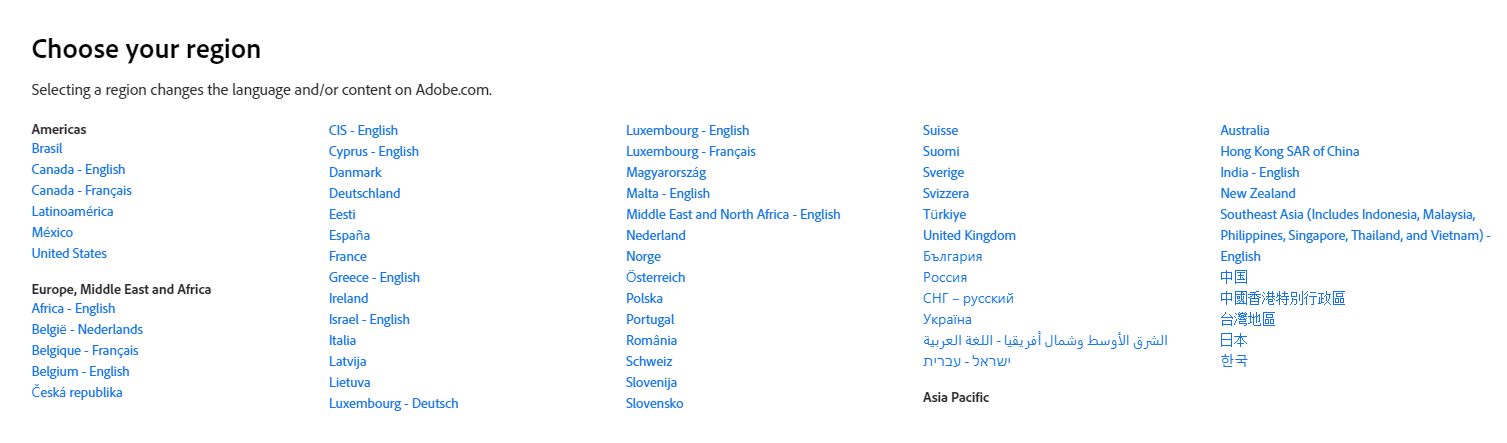
Adobe Region Selection
Spotify Region Selection

I can understand why these region language combinations exist, its a one click selection, getting the user to a region with a language that they understand. But in providing a simple user experience it has missed other scenarios like the one above.

Associating a Flag with a Language

A countries flag is a representation of a nation, a symbol of recognition, however it is not a representation of the language spoken by the people. Using Switzerland again as an example, they currently have four official languages, so picking the Swiss flag would render which language? The current most popular? Would there be four Swiss flags one with each language next to it? It raises a lot of questions.

Then we are back to the scenario used above, you are in France and want to view the website in English, picking the English flag (for example) just feels odd when selecting the language.

There are known issues using flags and some of those have caused offence, from the wrong flag being shown, the wrong language being picked for the flag or the user is simply not from the region but speaks the language e.g. Using the flag of Spain for selection but the Spanish language is spoken in many different countries, Spain, Mexico, Columbia, Venezuela, etc.

Using flags for language selection is best avoided entirely.

Changing Language Direction

This article has been discussing language selection and why associating regions or flags with language have issues, but some languages require a change in direction reading left to right or right to left. It is important to understand that certain languages require this level of change and need to be thought about when supporting such languages and what happens when they are selected.

For example if a website was in the region of Saudi Arabia and it only supported the official languages English and Arabic. The website would need to render left to right for English and right to left for Arabic and not just change the text to the appropriate language.

Conclusion

So when we need to support multiple regions and languages decoupling the region and the language would improve the user experience. We should consider which languages are supported and which ones are the default for a given region e.g. picking the French region and defaulting to French (Français) but allow your users to select your other supported languages. We also need to make sure that we have the correct reading direction and consider any icons, colours, etc. that might cause offence in the region. There is plenty of information out there but I think this colour chart shows cultural colours really nicely.

The messages to take away are region does != language and flag does != language.

And remember when you are creating a language picker, display the language names as they would be in the requested language e.g.
English
Français
Deutsch
Italiano
Español
العربية
中文

I hope this was useful and helps build better user experiences for multilingual websites.

Azure

IaC with Containers

In a previous article about IaC co-located with your application I discussed having application specific infrastructure with your code and then in following articles (IaC ARM templates, IaC Ansible and IaC Terraform) I discussed deploying IaC using various methods with Azure Pipelines. What I haven’t discussed is the development environment used in order to test out my infrastructure code, and that is what this article is about.

Lately I have been building various infrastructure using ARM templates, Ansible and Terraform separately and sometimes together to deploy to Azure. And I have lost track of what was installed in order to create and run my infrastructure code. For creating templates, playbooks, etc. I use Visual Studio Code. There are extensions for ARM templates, Ansible and Terraform which provide great help in creating infrastructure code.

For Ansible and Terraform I was using the WSL (Windows Subsystem for Linux) and running a script to install them into that environment and then using PowerShell Core and the Azure CLI for ARM templates.

I thought this was a good setup and provided me with everything I needed but what if I want to share this environment with my team. I could simply put together a list of commands to install all of the tools that I had and maybe create a page in our wiki, that would be a start, but then what about versions of tools and different operating systems and the fact it can be time consuming getting it all set up.

To help solve this I decided that creating a container using Docker would provide a way of consistently building an IaC environment. An environment I can share with others and I could use in a CI/CD pipeline. I decided that the editor is up to the developer so I am not including Visual Studio Code but definitely recommend it. (if you are interested Microsoft provide a guide to installing VS Code into containers https://code.visualstudio.com/docs/remote/containers).

I can imagine that most use only one of the tools for their infrastructure code, PowerShell or Azure CLI or either Ansible or Terraform even though they can work well together. RedHat and HashiCorp presented the concept of using Ansible and Terraform together in this video, it is very interesting to see how the strengths of each can be used together rather than a pro or con for choosing one or the other.

So on to creating some docker files, Microsoft have official images on Docker Hub for Powershell and Azure CLI, Hashicorp have an official image for Terraform. I still prefer to create my own image for Terraform though so I can add other tools to the image.

Note: All dockerfiles shown here are available from my GitHub repository.

Create Image

Terraform dockerfile

ARG IMAGE_VERSION=latest
ARG IMAGE_REPO=alpine

FROM ${IMAGE_REPO}:${IMAGE_VERSION} AS installer-env
ARG TERRAFORM_VERSION=0.12.26
ARG TERRAFORM_PACKAGE=terraform_${TERRAFORM_VERSION}_linux_amd64.zip
ARG TERRAFORM_URL=https://releases.hashicorp.com/terraform/${TERRAFORM_VERSION}/${TERRAFORM_PACKAGE}

# Install packages to get terraform
RUN apk upgrade --update && \
    apk add --no-cache wget
RUN wget --quiet ${TERRAFORM_URL} && \
    unzip terraform_${TERRAFORM_VERSION}_linux_amd64.zip && \
    mv terraform /usr/bin

# New stage to remove tar.gz layers from the final image
FROM ${IMAGE_REPO}:${IMAGE_VERSION}

# Copy only the files we need from the previous stage
COPY --from=installer-env ["/usr/bin/terraform", "/usr/bin/terraform"]

# Install additional packages
RUN apk upgrade --update && \
    apk add --no-cache bash 

CMD tail -f /dev/null

Ansible dockerfile

ARG IMAGE_VERSION=latest
ARG IMAGE_REPO=alpine

FROM ${IMAGE_REPO}:${IMAGE_VERSION}

ENV ANSIBLE_VERSION=2.9.9
ENV ALPINE_ANSIBLE_VERSION=2.9.9-r0
ENV WHEEL_VERSION=0.30.0
ENV APK_ADD="bash py3-pip ansible=${ALPINE_ANSIBLE_VERSION}"

# Install core libs
RUN apk upgrade --update && \
    apk add --no-cache ${APK_ADD}

# Install Ansible 
RUN python3 -m pip install --upgrade pip && \
    pip install wheel==${WHEEL_VERSION} && \
    pip install ansible[azure]==${ANSIBLE_VERSION} mitogen && \
    pip install netaddr xmltodict openshift

CMD tail -f /dev/null

As I mentioned at the beginning, I’ve be using a mix of the tools and could do with an image with multiple tools. I ended up with the following dockerfile.

ARG IMAGE_VERSION=latest
ARG IMAGE_REPO=alpine

FROM ${IMAGE_REPO}:${IMAGE_VERSION} AS installer-env

ARG TERRAFORM_VERSION=0.12.26
ARG TERRAFORM_PACKAGE=terraform_${TERRAFORM_VERSION}_linux_amd64.zip
ARG TERRAFORM_URL=https://releases.hashicorp.com/terraform/${TERRAFORM_VERSION}/${TERRAFORM_PACKAGE}

ARG POWERSHEL_VERSION=7.0.1
ARG POWERSHELL_PACKAGE=powershell-${POWERSHEL_VERSION}-linux-alpine-x64.tar.gz
ARG POWERSHLL_DOWNLOAD_PACKAGE=powershell.tar.gz
ARG POWERSHELL_URL=https://github.com/PowerShell/PowerShell/releases/download/v${POWERSHEL_VERSION}/${POWERSHELL_PACKAGE}

# Install packages
RUN apk upgrade --update && \
    apk add --no-cache bash wget curl python3 libffi openssl

# Get Terraform
RUN wget --quiet ${TERRAFORM_URL} && \
    unzip terraform_${TERRAFORM_VERSION}_linux_amd64.zip && \
    mv terraform /usr/bin

# Get PowerShell Core
RUN curl -L ${POWERSHELL_URL} -o /tmp/${POWERSHLL_DOWNLOAD_PACKAGE}&& \
    mkdir -p /opt/microsoft/powershell/7 && \
    tar zxf /tmp/${POWERSHLL_DOWNLOAD_PACKAGE} -C /opt/microsoft/powershell/7 && \
    chmod +x /opt/microsoft/powershell/7/pwsh

# New stage to remove tar.gz layers from the final image
FROM ${IMAGE_REPO}:${IMAGE_VERSION}

# Copy only the files we need from the previous stage
COPY --from=installer-env ["/usr/bin/terraform", "/usr/bin/terraform"]
COPY --from=installer-env ["/opt/microsoft/powershell/7", "/opt/microsoft/powershell/7"]
RUN ln -s /opt/microsoft/powershell/7/pwsh /usr/bin/pwsh

ENV ANSIBLE_VERSION=2.9.9
ENV ALPINE_ANSIBLE_VERSION=2.9.9-r0
ENV WHEEL_VERSION=0.30.0
ENV APK_ADD="bash py3-pip ansible=${ALPINE_ANSIBLE_VERSION}"
ENV APK_POWERSHELL="ca-certificates less ncurses-terminfo-base krb5-libs libgcc libintl libssl1.1 libstdc++ tzdata userspace-rcu zlib icu-libs"

# Install core packages
RUN apk upgrade --update && \
    apk add --no-cache ${APK_ADD} ${APK_POWERSHELL} && \
    apk -X https://dl-cdn.alpinelinux.org/alpine/edge/main add --no-cache lttng-ust

# Install Ansible and other packages
RUN python3 -m pip install --no-cache-dir --upgrade pip && \
    pip install --no-cache-dir wheel==${WHEEL_VERSION} && \
    pip install --no-cache-dir ansible[azure]==${ANSIBLE_VERSION} mitogen && \
    pip install --no-cache-dir netaddr xmltodict openshift

CMD tail -f /dev/null

Now I have dockerfiles, I need to create the image. Docker build is the command that I need.

docker build -f <dockerfile to use> -t <image name>
e.g.
docker build -f terraform.dockerfile -t iac_terraform_image

Run Image

Once I have the image, I need to test it out. As I installed bash as part of my image I can run an interactive command that will provide me with the bash shell.

e.g.
docker run -it --entrypoint=/bin/bash iac_terraform_image

from the shell I can then run commands like terraform –version

So now I have an image running in a container, what about my infrastructure I want to run? I could update the image to include git and pull my source code into the container or I could mount a volume to the container pointing to my source code on the host machine. I will use a volume for this example.

docker run -it --entrypoint=/bin/bash --volume <my source code>:/<name of the mount> <image name>
e.g.
docker run -it --entrypoint=/bin/bash --volume c:\users\<your profile>\Source:/mycode iac_terraform_image

As I want to deploy infrastructure to Azure I need to define some credentials, for this example I will add them as environment variables in a separate local file. Note: this file should not be added to source control.

The file contents looks like this for Terraform:

ARM_SUBSCRIPTION_ID=<subscription id>
ARM_TENANT_ID=<tenant id>
ARM_CLIENT_ID=<app id>
ARM_CLIENT_SECRET=<client secret>

The file contents looks like this for Ansible:

AZURE_SUBSCRIPTION_ID=<subscription id>
AZURE_TENANT=<tenant id>
AZURE_CLIENT_ID=<app id>
AZURE_SECRET=<client secret>

Combining the Terraform and Ansible environment values in the file would be used for the image that uses both of them.

I’ve called the file docker_env.txt and can now add that to the docker run command to include those environment variables.

e.g.
docker run -it --entrypoint=/bin/bash --volume c:\users\<your profile>\Source:/mycode --env-file docker_env.txt iac_terraform_image

Share Image

I now have an image, attached my source code, added my environment and I can run commands. Next step is to be able to share this image with others, I can upload it to Docker Hub (public) or I can use some other container registry like Azure Container Registry (private).  I will use the Azure Container Registry as it’s private.

I need to login to the registry, so I’ll use the Azure CLI to do this.

az acr login --name <your container registry>

Next I need to tag the image I want to push using the Azure Container Registry name with docker tag.

e.g.
docker tag terraform yourcontainerregistry.azurecr.io/iac_terraform_image

And now I can push the image to the Azure Container Registry using docker push.

e.g.
docker push yourcontainerregistry.azurecr.io/iac_terraform_image

For others to now use the image (assuming they have access to the Azure Container Registry) they can use docker pull.

e.g.
docker pull yourcontainerregistry.azurecr.io/iac_terraform_image

Running the newly pulled image.

docker run -it --entrypoint=/bin/bash --volume  c:\users\<your profile>\Source:/mycode --env-file docker_env.txt yourcontainerregistry.azurecr.io/iac_terraform_image

Summary

Using containers really helps get an environment setup quickly and easily and allows you to concentrate on the task at hand rather than setting up the tools. If you have many developers this can save a lot of time and the image can be easily updated and versioned.

I hope this was useful and helps create your own IaC development environments.