Well that doesn’t work, the parameter values are not picked up by the FileTransform Task and so no substitution happens. So, what if we define the variables again and assign the values from the parameters.
At the time of writing this is a known issue with the FileTransform Task but there is a work around. Simply change the boolean variables to be a string.
It’s good this is now working but it seems a bit excessive to add duplicate variable for each parameter in order to successfully get this to work. What could we do to improve that?
Well one thing we can do is to use a loop to turn all of the parameters into variables at runtime.
Note: The Azure Pipelines editor shows the loop underlined and reports an error “The first property must be task”.
But when running validate.
The result is OK. Hopefully this issue will get resolved in the future and not show as an error in the UI.
So the loop worked and provided all of the variables to be substituted. We could leave it there as it works, but we could also use some of the other parameter properties such as displayName and values to provide a nicer configuration.
In the Azure DevOps UI we can see the parameters have nice names instead of the nested ones and we can choose expected values.
I found this technique works really well and have already used it in a pipeline. You can also use a condition to only create a variable for parameters that starts with or contains etc. e.g.
Azure Pipelines YAML allows us to create PaC (Pipeline as Code) to build and deploy applications to multiple stages e.g. Staging, Production.
To demonstrate this process I will cover the following:
Build a simple web application with UI tests
Publish the web application to an ACR (Azure Container Registry)
Create an Azure Web App with IaC (Infrastructure as Code)
Deploy the web application container to the Azure Web App
Run basic UI tests on multiple stages
This article assumes that you are familiar with building YAML pipelines in Azure DevOps Pipelines.
The Web Application
For simplicity I have used the default ASP.NET Core Web Application in Visual Studio 2019 with Docker Support enabled for Linux to create the web application.
The only thing added to the default web application is a few UI tests using Selenium. You can find all the code used and the deployment files on my GitHub.
The Pipeline
After creating a new pipeline in Azure Pipelines, I need to configure the Azure and ACR connection variables in the pipeline UI.
If you need to know how to configure the ACR service connection see my previous article Configure ACR – Azure DevOps.
Build Image
Now everything is configured, I can create the initial YAML to build and push the application to an ACR.
As this will be a multistage pipeline I will create the first Stage to build and push the image.
Now I can run this pipeline and see if it was successful.
And I can check the ACR in Azure to confirm the image has successfully been created.
Define the Web App
Now I have the image uploaded to the ACR, I need to define the Azure Web App that I will be deploying to.
For this I will use an ARM (Azure Resource Manager) template.
{
    "$schema": "https://schema.management.azure.com/schemas/2019-04-01/deploymentTemplate.json#",
    "contentVersion": "1.0.0.0",
    "parameters": {
        "siteName": {
            "type": "string",
            "metadata": {
                "description": "The unique name of your Web Site."
            }
        },
        "appImageName": {
            "type": "string",
            "metadata": {
                "description": "The name of the container image for this web app"
            }
        },
        "containerRegistryName": {
            "type": "string",
            "metadata": {
                "description": "The name of the azure container registry that contains the webapp"
            }
        },
        "containerRegistryUserName": {
            "type": "string",
            "metadata": {
                "description": "The user name to access the azure container registry"
            }
        },
        "containerRegistryPassword": {
            "type": "string",
            "metadata": {
                "description": "The password to access the azure container registry"
            }
        }

    },
    "variables": {
        "hostingPlanName": "[concat('hpn-',  parameters('siteName'))]",
        "siteApiVersion": "2019-08-01"
    },
    "resources": [
        {
            "type": "Microsoft.Web/serverfarms",
            "apiVersion": "[variables('siteApiVersion')]",
            "name": "[variables('hostingPlanName')]",
            "location": "[resourceGroup().location]",
            "properties": {
                "name": "[variables('hostingPlanName')]",
                "workerSizeId": "1",
                "reserved": true,
                "numberOfWorkers": "1"
            },
            "sku": {
                "Tier": "Standard",
                "Name": "S1"
            },
            "kind": "linux"
        },
        {
            "name": "[parameters('siteName')]",
            "type": "Microsoft.Web/sites",
            "apiVersion": "[variables('siteApiVersion')]",
            "kind": "app,linux,container",
            "location": "[resourceGroup().location]",
            "tags": {
                "hostingPlan": "[variables('hostingPlanName')]",
                "displayName": "[parameters('siteName')]"
            },
            "dependsOn": [
                "[variables('hostingPlanName')]"
            ],
            "properties": {
                "name": "[parameters('siteName')]",
                "serverFarmId": "[variables('hostingPlanName')]",
                "siteConfig": {
                    "use32BitWorkerProcess": false,
                    "http20Enabled": true,
                    "minTlsVersion": "1.2",
                    "alwaysOn": true,
                    "linuxFxVersion": "[concat('DOCKER|', parameters('appImageName'))]",
                    "appSettings": [
                        {
                            "name": "DOCKER_REGISTRY_SERVER_USERNAME",
                            "value": "[parameters('containerRegistryUserName')]"
                        },
                        {
                            "name": "DOCKER_REGISTRY_SERVER_URL",
                            "value": "[concat('https://',parameters('containerRegistryName'))]"
                        },
                        {
                            "name": "DOCKER_REGISTRY_SERVER_PASSWORD",
                            "value": "[parameters('containerRegistryPassword')]"
                        }
                    ]
                }
            }
        }
    ],
    "outputs": {}
}
There are few things to note in this template, firstly that we are deploying to a linux container so the website configuration is a little different to normal. The kind property needs to include more information than just app.
"kind": "app,linux,container"
And the reserved property must be set to true.
"reserved": true
There are also a couple of settings that aren’t really documented in the Microsoft Docs to configure the app settings to connect to the ACR to retrieve the image. Adding these appSettings will setup the connection.
You may have noticed in the pipeline that I used “Jobs” and created a single job, this could be seen as unnecessary, but now I am going to add another job that will run in parallel with the Build Job.
So I need to add some tasks to build my UI tests. I’ve also added a variable “vmWindowsImageName” as for this job I am going to use a windows image. The test project is .NET Core 3.1 so I will use the DotNetCoreCLI tasks to restore packages and build the tests.
Now the pipeline builds and publishes the necessary artifacts to the pipeline and the ACR, I can now add a new stage to deploy the application.
This new stage uses a special job, a ‘deployment’ job and uses a strategy. The Microsoft Docs have a lot of information about different strategies, for this I will use the ‘runonce’ strategy as the other strategies are not supported here.
- stage: Staging
  displayName: Deploy to Staging
  jobs:
  - deployment: DeployWeb
    displayName: Deploy Web App
    pool:
     vmImage: $(vmWindowsImageName)
    environment: Staging
    variables:
      siteName: staging-taz-app
      siteResourceGroup: stag-taz-webapp
      siteLocation: UK South
      appImageName: $(containerRegistryName)/$(imageRepository):latest
      baseSiteUrl: 'https://$(siteName).azurewebsites.net/'
    strategy:
      runOnce:
        deploy:
          steps:
With the job and strategy configured, I can now add the first step to execute the ARM template and create the Web App.
Once the Web App is created I can deploy the application container into the new Web App. As this is a container application I will use the AzureWebAppContainer task.
Once the app is deployed I can then run the UI tests, but first I’ll need to add a FileTranform task to make sure my settings file has the correct URL configured to run the tests against.
Builds a web application image and uploads it to an ACR
Deploys an Azure Web App using an ARM Template
Deploys the image into the Azure Web App
And runs UI tests against the newly deployed application
This is great but I would guess most of us don’t just have one environment that we need to deploy to and will need at least another one and maybe a manual intervention step too.
To create another environment I could just copy and paste the ‘Staging’ stage, rename it and update the variables. Whilst this approach would work, it would introduce a maintenance overhead we don’t want.
Fortunately Azure Pipelines YAML includes Templates for variables, jobs, steps and stages to handle this.
So, I will move the steps for the ‘Staging’ deployment into a template and call it web-deploy-steps.yml. The template file will look like:
Now the pipeline has ran, let’s check the results.
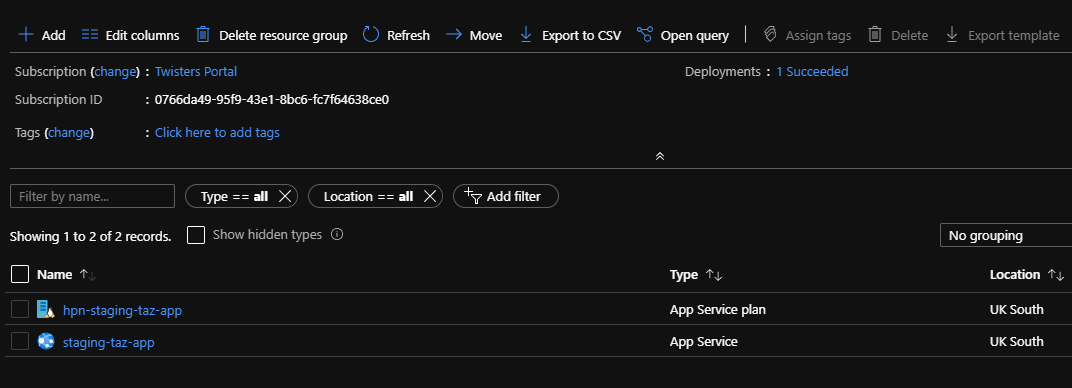
And let’s see if the resources were deployed into Azure.
Approvals and Checks
If the stage needs a manual intervention or approval step you can configure them in Azure Pipelines, just select ‘Environments’.
Once the list of environments is displayed you can select the one you need to add approvals and checks to e.g. Production.
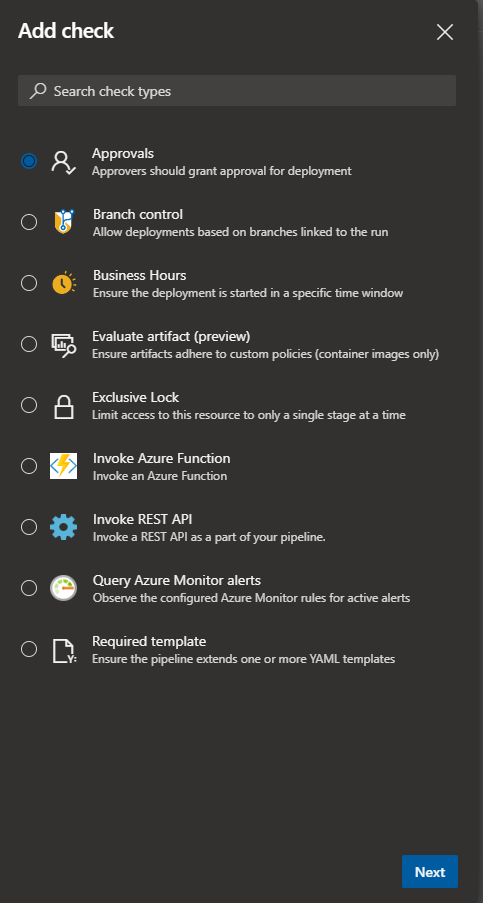
Selecting the 3 dots on the right hand side and then selecting ‘Approvals and checks’ will allow a variety of options to be added.
There are a number of checks that can be added, here I will just select approvals.
Approvals simply need the users or groups that can approve the stage you want to control.
There are a few more settings for approvals, how many need to approve, approval timeout, etc. but I am not going to go into detail about them.
Conclusion
Azure Pipelines YAML provides a flexible way to create build and deployment pipelines that can be source controlled. Changes can be approved, tracked and are visible to everyone instead of a change via a UI that goes unnoticed and difficult to track if there is a problem caused by a change.
Being able to control the full application deployment flow this way is very powerful and allows the whole team to understand how their application is built and deployed.






 Coding With Taz