In Part 1, we explored what Dapr is and why it exists. Now it’s time to make it real. Before you can use state management, pub/sub, or any other building block, you need a smooth local development workflow, one that feels natural, fast, and familiar.
Dapr is often associated with Kubernetes and cloud deployments, but most development happens on a laptop. If Dapr doesn’t fit cleanly into your inner loop, it won’t be adopted at all. This post focuses on exactly that: running and debugging Dapr locally, using the same workflow you’d expect for any other service.
What “Running Dapr Locally” Actually Means
Running Dapr locally does not mean:
Running Kubernetes
Deploying to the cloud
Learning a new development model
It means:
Running your application as a normal process
Running Dapr as a sidecar alongside it
Using local infrastructure (or containers) for dependencies
Dapr was designed for fast, iterative development and that’s what we’ll focus on here.
Installing Dapr Locally
Dapr consists of two main parts:
The Dapr CLI
The Dapr runtime
Once the CLI is installed, initialising Dapr locally is a one‑time step:
dapr init
This sets up:
The Dapr runtime
A local Redis instance (used by default for state and pub/sub)
The placement service (used only for actors)
You don’t need to understand all of these yet. The important part is: Dapr now has everything it needs to run locally.
Note: In local mode, Dapr loads components at startup and does not hot‑reload them. In Kubernetes, components can be updated dynamically.
Your First Local Dapr App
At its simplest, running an app with Dapr looks like this:
.NET example
dapr run \
  --app-id myapp \
  --app-port 8080 \
  --dapr-http-port 3500 \
  -- dotnet run
Or for Go:
Go example
dapr run \
  --app-id myapp \
  --app-port 8080 \
  --dapr-http-port 3500 \
  -- go run main.go
What’s happening here:
Your application runs exactly as it normally would
Dapr starts a sidecar process alongside it
Dapr listens on port 3500
Your app listens on its own port (e.g. 8080)
From your application’s point of view, nothing special is happening and that’s the point.
Understanding the Local Architecture
Locally, the architecture looks like this:
Your App (8080)
      ↓
Dapr Sidecar (3500)
      ↓
Local Infrastructure (Redis, etc.)
Your application:
Receives HTTP requests as usual
Calls Dapr via HTTP or gRPC when it needs state, pub/sub, or bindings
Dapr:
Handles communication with infrastructure
Manages retries, timeouts, and serialisation
Emits logs and metrics independently
This separation is key to understanding how Dapr fits into your workflow.
Adding Components Locally
Dapr integrations are configured using components, which are simple YAML files.
Locally, components are usually placed in a components/ directory:
components/
└── statestore.yaml
When you run Dapr, you point it at this directory:
dapr run \
  --app-id myapp \
  --app-port 8080 \
  --components-path ./components \
  -- dotnet run
This mirrors how Dapr is configured in production, the same components, the same structure, just running locally.
Note: If you don’t specify a components path, Dapr uses the default directory at ~/.dapr/components.
Debugging with Dapr
This is where Dapr fits surprisingly well into normal development workflows.
Debugging the application
Your application runs as a normal process:
Attach a debugger
Set breakpoints
Step through code
Inspect variables
Nothing about Dapr changes this.
Debugging Dapr itself
Dapr runs as a separate process, with its own logs.
Useful commands include:
dapr list
dapr logs --app-id myapp
This separation makes it easier to answer an important question:
“Is this a bug in my application, or a configuration/infrastructure issue?”
Common Local Pitfalls
A few things that commonly trip people up:
Port conflicts
Dapr needs its own HTTP and gRPC ports.
Forgetting to restart Dapr
Component changes require restarting the sidecar.
Confusing app logs with Dapr logs
They are separate processes, check both.
Missing components path
If Dapr can’t find your components, integrations won’t work.
Once you understand these, local development becomes predictable and fast
Why This Matters for the Rest of the Series
Everything else in this series builds on this local setup:
State management
Pub/Sub
Bindings and storage
End‑to‑end workflows
The same dapr run workflow applies everywhere. Once you’re comfortable running and debugging Dapr locally, the rest of the building blocks feel much less intimidating.
What’s Next
Now that we can run and debug Dapr locally, we can start using it for real work.
In the next post, we’ll look at State Management with Dapr, using Redis and Postgres, all running locally, using the setup described here.
I’ve been using a container for running Terraform for a while but just for local development. More recently though the need to share modules has become more prevalent.
One solution for this is to use a container to not only share modules for development but for deployment as well. This also allows the containers to be versioned, limiting breaking changes affecting multiple pipelines at once.
In this post I am going to cover:
Building a container with shared terraform modules
Pushing the built container to Azure Container Registry
Configuring the dev environment to use the built container
Deploy infrastructure using the built container
NOTE: All of the code used here can be found on my GitHub including the shared modules.
Prerequisites
For this post I will running on Windows and using the following programs:
The container needs to not only have what is needed for development but what is needed to run as a container job in Azure Pipelines e.g. Node. The Microsoft Docs provide more detail about this.
The container is an Alpine Linux base with Node, PowerShell Core, Azure CLI and Terraform installed.
Dockerfile
ARG IMAGE_REPO=alpine
ARG IMAGE_VERSION=3
ARG TERRAFORM_VERSION
ARG POWERSHELL_VERSION
ARG NODE_VERSION=lts-alpine3.14

FROM node:${NODE_VERSION} AS node_base
RUN echo "NODE Version:" && node --version
RUN echo "NPM Version:" && npm --version

FROM ${IMAGE_REPO}:${IMAGE_VERSION} AS installer-env
ARG TERRAFORM_VERSION
ARG POWERSHELL_VERSION
ARG POWERSHELL_PACKAGE=powershell-${POWERSHELL_VERSION}-linux-alpine-x64.tar.gz
ARG POWERSHELL_DOWNLOAD_PACKAGE=powershell.tar.gz
ARG POWERSHELL_URL=https://github.com/PowerShell/PowerShell/releases/download/v${POWERSHELL_VERSION}/${POWERSHELL_PACKAGE}
RUN apk upgrade --update && \
    apk add --no-cache bash wget curl

# Terraform
RUN wget --quiet https://releases.hashicorp.com/terraform/${TERRAFORM_VERSION}/terraform_${TERRAFORM_VERSION}_linux_amd64.zip && \
    unzip terraform_${TERRAFORM_VERSION}_linux_amd64.zip && \
    mv terraform /usr/bin

# PowerShell Core
RUN curl -s -L ${POWERSHELL_URL} -o /tmp/${POWERSHELL_DOWNLOAD_PACKAGE}&& \
    mkdir -p /opt/microsoft/powershell/7 && \
    tar zxf /tmp/${POWERSHELL_DOWNLOAD_PACKAGE} -C /opt/microsoft/powershell/7 && \
    chmod +x /opt/microsoft/powershell/7/pwsh

FROM ${IMAGE_REPO}:${IMAGE_VERSION}
ENV NODE_HOME /usr/local/bin/node
# Copy only the files we need from the previous stages
COPY --from=installer-env ["/usr/bin/terraform", "/usr/bin/terraform"]
COPY --from=installer-env ["/opt/microsoft/powershell/7", "/opt/microsoft/powershell/7"]
RUN ln -s /opt/microsoft/powershell/7/pwsh /usr/bin/pwsh
COPY --from=node_base ["${NODE_HOME}", "${NODE_HOME}"]

# Copy over Modules
RUN mkdir modules
COPY modules modules

LABEL maintainer="Coding With Taz"
LABEL "com.azure.dev.pipelines.agent.handler.node.path"="${NODE_HOME}"

ENV APK_DEV "gcc libffi-dev musl-dev openssl-dev python3-dev make"
ENV APK_ADD "bash sudo shadow curl py3-pip graphviz git"
ENV APK_POWERSHELL="ca-certificates less ncurses-terminfo-base krb5-libs libgcc libintl libssl1.1 libstdc++ tzdata userspace-rcu zlib icu-libs"
# Install additional packages
RUN apk upgrade --update && \
    apk add --no-cache --virtual .pipeline-deps readline linux-pam && \
    apk add --no-cache --virtual .build ${APK_DEV} && \
    apk add --no-cache ${APK_ADD} ${APK_POWERSHELL} && \
    # Install Azure CLI
    pip --no-cache-dir install --upgrade pip && \
    pip --no-cache-dir install wheel && \
    pip --no-cache-dir install azure-cli && \
    apk del .build && \
    apk del .pipeline-deps

RUN echo "PS1='\n\[\033[01;35m\][\[\033[0m\]Terraform\[\033[01;35m\]]\[\033[0m\]\n\[\033[01;35m\][\[\033[0m\]\[\033[01;32m\]\w\[\033[0m\]\[\033[01;35m\]]\[\033[0m\]\n \[\033[01;33m\]->\[\033[0m\] '" >> ~/.bashrc
CMD tail -f /dev/null
The container can be built locally using the docker build command and providing the PowerShell and Terraform versions e.g.
Next thing to do is to build the container and push it to the Azure Container Registry (if you need to know how to set that up in Azure DevOps see my previous post on Configuring ACR). In this pipeline I have also added a Snyk scan to check for vulnerabilities in my container (happy to report there wasn’t any at the time of writing). If you are not familiar with Snyk I recommend you check out their website.
For the build number I have used the version of Terraform and then the date and revision but you can use whatever makes sense for example you could use Semver.
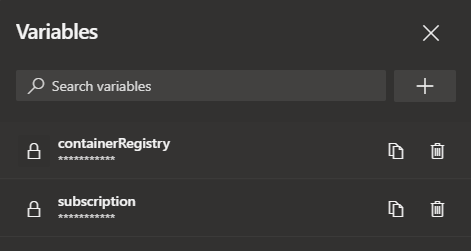
I also setup some pipeline variables for the container registry connection and the container registry name e.g. <your registry>.azurecr.io
Once the container is built it can be viewed in the Azure Portal inside your Azure Container Registry.
Configuring the Dev Environment
Now the container has been created and pushed to the Azure Container Registry the next job is to configure Visual Studio Code.
To start with we need to make sure the extension Remote Containers is installed in Visual Studio Code
In the project where you want to use the container, create a folder called .devcontainer and then a file inside the folder called devcontainer.json and add the following (updating the container registry and container details e.g. name, version, etc.)
// For format details, see https://aka.ms/devcontainer.json. For config options, see the README at:
// https://github.com/microsoft/vscode-dev-containers/tree/v0.205.1/containers/docker-existing-dockerfile
{
	"name": "Terraform Dev",

	// Sets the run context to one level up instead of the .devcontainer folder.
	"context": "..",

	// Update the 'dockerFile' property if you aren't using the standard 'Dockerfile' filename.
	"image": "<your container registry>.azurecr.io/iac/terraform:1.0.10_20211108.1",

	// Set *default* container specific settings.json values on container create.
	"settings": {},

	// Add the IDs of extensions you want installed when the container is created.
	"extensions": [
		"ms-vscode.azure-account",
		"ms-azuretools.vscode-azureterraform",
		"hashicorp.terraform",
		"ms-azure-devops.azure-pipelines"
	]
}
NOTE: You may notice that there is a number of extensions in the above config. I use these extensions in Visual Studio Code for Terraform, Azure Pipelines, etc. and therefore they would also need installing in order to make use of them in the container environment.
TIP: If you right-click on an extension in Visual Studio Code and select ‘Copy Extension ID’ you can easily get the extension information you need to add other extensions to the list.
Now, make sure to login to the Azure Container Registry (either in another window or the terminal in Visual Studio Code) with the Azure CLI for authentication e.g.
az acr login -n <your container registry name>
This needs to be done to be able to pull down the container. Once the login is successful, select the icon in the bottom left of Visual Studio Code to ‘Open a Remote Window’
Then select ‘Reopen in Container’ this will download the container from the Azure Container Registry and load up the project in the container (this can take a minute or so first time).
Once the project is loaded you can create Terraform files as normal and take advantage of the shared modules inside the container.
So lets create a small example. I work a lot in Azure so I am using a shared module to create an Azure Function and another module to format the naming convention for the resources.
From the terminal window I can now authenticate to Azure by logging in via the CLI
az login
Then I can run the terraform commands
terraform init
terraform plan
This produces the terraform plan for the resources that would be created.
Deploy Infrastructure Using the Container
So now I have created a new terraform configuration its time to deploy the changes using the same container.
To do this I am using Azure Pipelines YAML. There are several parts to the pipeline, firstly, in order to store the state for the pipeline there needs to be an Azure Storage Account to store the state file. I like to add this to the pipeline using Azure CLI so that the account is created if it doesn’t exist but also updates it if there are changes.
As with the container build pipeline I used some pipeline variables here for the subscription connection and the container registry e.g. <your registry>.azurecr.io
After the pipeline ran, a quick check in the Azure Portal shows the resources were created as expected
Final Thoughts
I really like using containers for local development and with the remote containers extension for Visual Studio Code its great to be able to run from within a container and share code in this way. I am sure that other things could be shared using this method too.
Being able to version the containers and isolate breaking changes across multiple pipelines is also a bonus. I expect this process could be better, maybe even include pinning of provider versions in Terraform, etc. but its a good start.



 Coding With Taz